
If you have been using Power BI dataflows for data prep and ETL, Dataflows Gen2 in Microsoft Fabric is the next step. It keeps everything you already know from Power Query but adds proper data destinations, pipeline integration, better monitoring, and high-performance compute. This post covers what changed, what stayed the same, and what you need to know to start using Gen2.
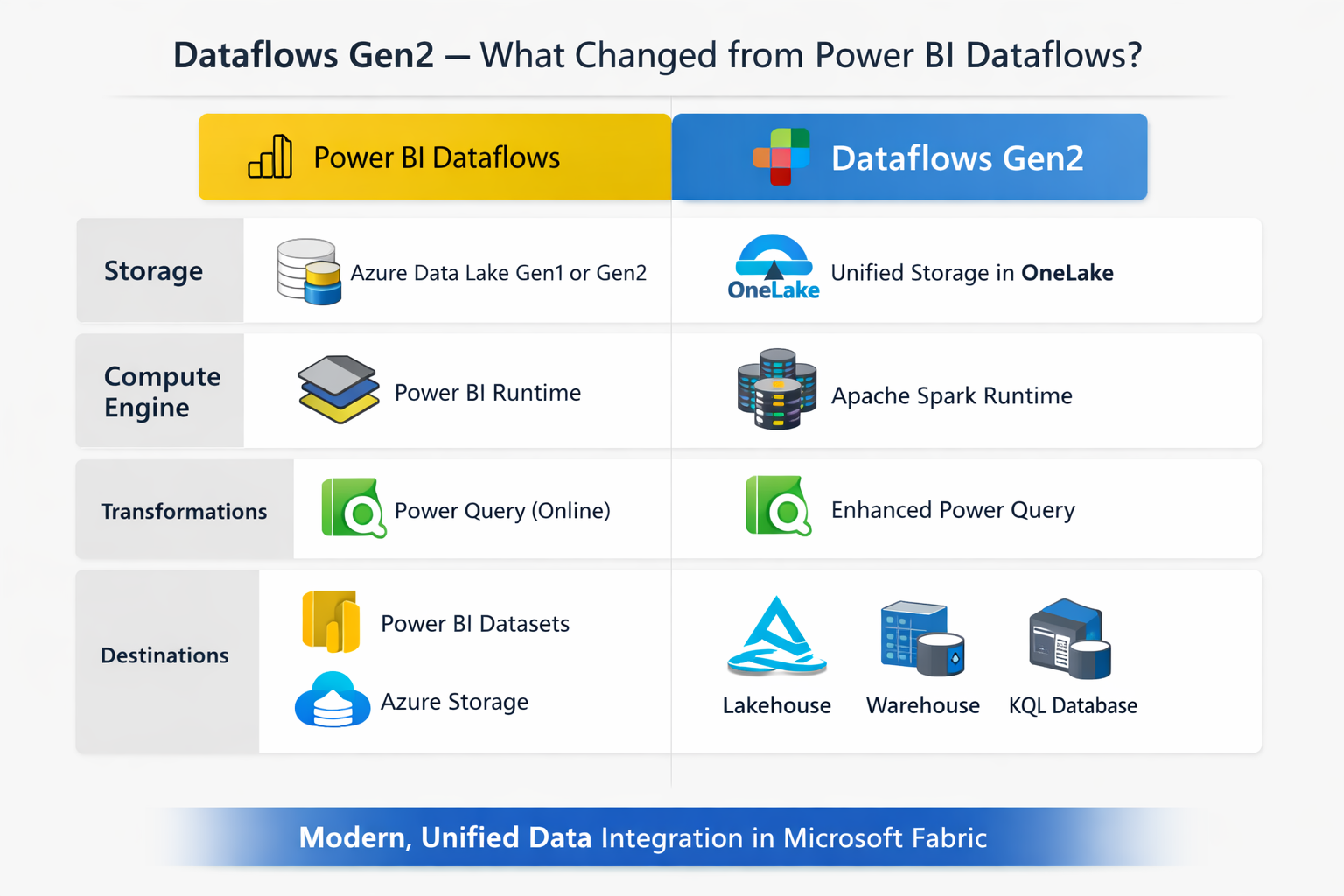
What Gen1 Was
Power BI Dataflows (Gen1) let you connect to data sources, clean and reshape data using Power Query, and store the results so Power BI reports could connect to them through the Dataflow connector. The idea was solid: one place to prepare data, reused across many reports, with scheduled refresh to keep it current.
The limitation was always the destination. Gen1 stored data in its own internal storage or optionally in your own Azure Data Lake (BYOL). That was it. You couldn’t push directly to a Lakehouse, Warehouse, or Azure SQL. And there was no way to hook a dataflow into a pipeline alongside other activities.
Gen2 fixes both of those things.
What Is New in Gen2
Multiple Output Destinations
This is the biggest change. Instead of writing to internal storage only, Gen2 lets each query in a dataflow write to its own destination. You can mix destinations within the same dataflow. Supported targets include:
- Fabric Lakehouse (Tables or Files)
- Fabric Warehouse
- Fabric KQL Database
- Fabric SQL Database
- Azure SQL Database
- Azure Data Lake Gen2
- Azure Data Explorer
- Snowflake
- SharePoint Files
This means your dataflow can clean data and load it straight into a Lakehouse table or Warehouse without any extra steps. No pipelines just to move the output somewhere useful.
Pipeline Integration
Gen2 works as an activity inside Data Factory Pipelines. You can chain it with copy activities, stored procedures, notebooks, and more on a unified schedule. Gen1 had no pipeline support at all.
AutoSave and Background Publishing
Gen2 saves your work automatically as you go. When you publish, validation runs in the background and you don’t have to wait for it to finish before moving on.
High-Performance Compute
Gen2 uses Fabric SQL Compute engines for handling large data efficiently. When you first create a dataflow in a workspace, Fabric automatically creates a staging Lakehouse and Warehouse (named DataflowStaging...). These are shared across all dataflows in the workspace and handle the compute. Do not delete them.
Copilot
Gen2 integrates with Copilot in Fabric. You can use natural language to apply transformations:
- “Only keep European customers”
- “Count the total number of employees by City”
- “Only keep orders whose quantities are above the median value”
Each prompt gets applied as a step in the Applied Steps list. Type “Undo” to remove the last step.
Recent Data Sources
Gen2 tracks previously used sources so you can reload them directly without reconfiguring connections each time.
Feature Comparison
| Feature | Gen2 | Gen1 |
|---|---|---|
| Power Query authoring | Yes | Yes |
| Multiple output destinations | Yes | No |
| Pipeline integration | Yes | No |
| AutoSave and background publish | Yes | No |
| High-performance Fabric compute | Yes | No |
| Copilot / natural language authoring | Yes | No |
| Monitoring Hub integration | Yes | No |
| Incremental refresh | Yes | Yes |
| DirectQuery via Dataflow connector | No | Yes |
| Bring your own lake (BYOL) | No | Yes |
| CDM folders | No | Yes |
One thing to flag: Gen2 does not support DirectQuery through the Dataflow connector. The replacement is to use data destinations and connect your reports directly to the output table in the Lakehouse or Warehouse.
Migrating from Gen1 to Gen2
There are three ways to move Gen1 dataflows across.
Export Template (recommended for full dataflows)
- Open the Gen1 dataflow and select Home > Export template
- Save the
.pqtfile - Create a new Dataflow Gen2 in your Fabric workspace
- Select Import from a Power Query template and open the
.pqtfile - Reconnect credentials when prompted
Copy and Paste (recommended for partial migrations)
- Open the Gen1 dataflow in Power Query
- Select the queries you want (Ctrl+click for multiple), then Ctrl+C
- Open a Dataflow Gen2, add a blank query, then Ctrl+V to paste
- Delete the blank query and reconnect credentials
Save As (fastest for full conversion)
- In the workspace, select … next to the Gen1 dataflow
- Select Save as Dataflow Gen2
- Review and publish
Note: scheduled refresh settings are not carried over by any of these methods. Reconfigure refresh after migrating.
Final Thoughts
Gen2 is a meaningful upgrade from Gen1, not just a rename. The combination of flexible data destinations and pipeline integration removes the friction that made Gen1 feel limited outside of pure Power BI use cases. If you are starting something new in Fabric, use Gen2. If you have existing Gen1 dataflows, the migration tools are straightforward and the Export Template approach makes it easy to move without losing your transformation logic.
The one gap to plan for is DirectQuery. If your current reports rely on DirectQuery through the Dataflow connector, you will need to rebuild those connections against the destination table after migrating.