
One of the features in Microsoft Fabric that I keep coming back to is shortcuts. On the surface they seem simple, just a way to reference data in another location, but the more you use them, the more they start to reshape how you think about structuring your data platform. No pipelines to move data, no duplicate copies to keep in sync. Just a pointer that lets you work with data wherever it lives.

In this post I’ll walk through what shortcuts are, where you can use them, how to create them, and the things worth knowing before you start connecting everything together.
What Is a Shortcut?
A shortcut is an object in OneLake that points to another storage location. It looks like a regular folder in your lakehouse, but it isn’t storing any data itself. It’s just a reference. You can point a shortcut at something inside Fabric (another lakehouse, a warehouse, a KQL database) or at external storage like Azure Data Lake Storage Gen2, Amazon S3, or Google Cloud Storage.
The data never moves. When you query through a shortcut, Fabric reads from the original location. Delete the shortcut and the source data is untouched.
This is different from copying data into Fabric. With shortcuts, the source is always authoritative. You’re not maintaining a second copy that can drift out of sync.
Where Can You Create Shortcuts?
Shortcuts can be created in two types of Fabric items: lakehouses and KQL databases. Within a lakehouse, you have two places to put them, and the rules are different for each.
Tables Folder
The Tables folder is where Fabric registers structured data for SQL and Spark access. Shortcuts here have specific rules:
- They can only be created at the top level and you can’t nest a shortcut inside a subfolder under Tables
- If the shortcut target is in Delta Parquet format, Fabric automatically recognizes it as a table and registers it in the SQL analytics endpoint
- You can shortcut to a single Delta table or to a schema (a parent folder containing multiple Delta tables)
- Table names cannot contain spaces — OneLake won’t recognize a Delta shortcut with a space in the name
Use the Tables folder when you want the shortcut to be queryable through SQL or show up as a registered table in the lakehouse explorer.
Files Folder
The Files folder is more flexible:
- Shortcuts can be created at any level in the folder hierarchy
- Any data format is supported
- Data is not auto-registered as a table
Use the Files folder for raw or semi-structured data you plan to process with a notebook, or when the source isn’t Delta format.
KQL Databases
In a KQL database, shortcuts appear under a Shortcuts folder and are treated as external tables. You query them using the external_table() Kusto function:
external_table('MyShortcut') | take 100
Types of Shortcuts
Internal Shortcuts
Internal shortcuts point to data within other Fabric items: lakehouses, data warehouses, KQL databases, mirrored databases, semantic models, Databricks catalogs. The item types don’t need to match. A lakehouse shortcut can point to a warehouse, for example.
Authorization uses the calling user’s identity, so the user accessing the data needs read permissions on the target. This matters when you’re sharing shortcuts across workspaces with different access controls.
One thing to watch out for: if users are querying through Power BI using DirectLake over SQL or T-SQL in delegated identity mode, the calling user’s identity is not passed through. It uses the item owner’s identity instead. If that’s a problem for your scenario, switch to DirectLake over OneLake or T-SQL in user identity mode.
External Shortcuts
External shortcuts connect to storage outside of Fabric:
- Azure Data Lake Storage Gen2
- Azure Blob Storage
- Amazon S3 and S3-compatible storage
- Google Cloud Storage
- Dataverse
- OneDrive and SharePoint
- Iceberg tables
- On-premises or network-restricted storage (via the Fabric on-premises data gateway)
External shortcuts use a cloud connection for credentials rather than the calling user’s identity. This means that once a shortcut is created, any user with access to the lakehouse can read through it using the stored connection credentials. Think through the access implications before you set these up.
How to Create a Shortcut
In the Files Section
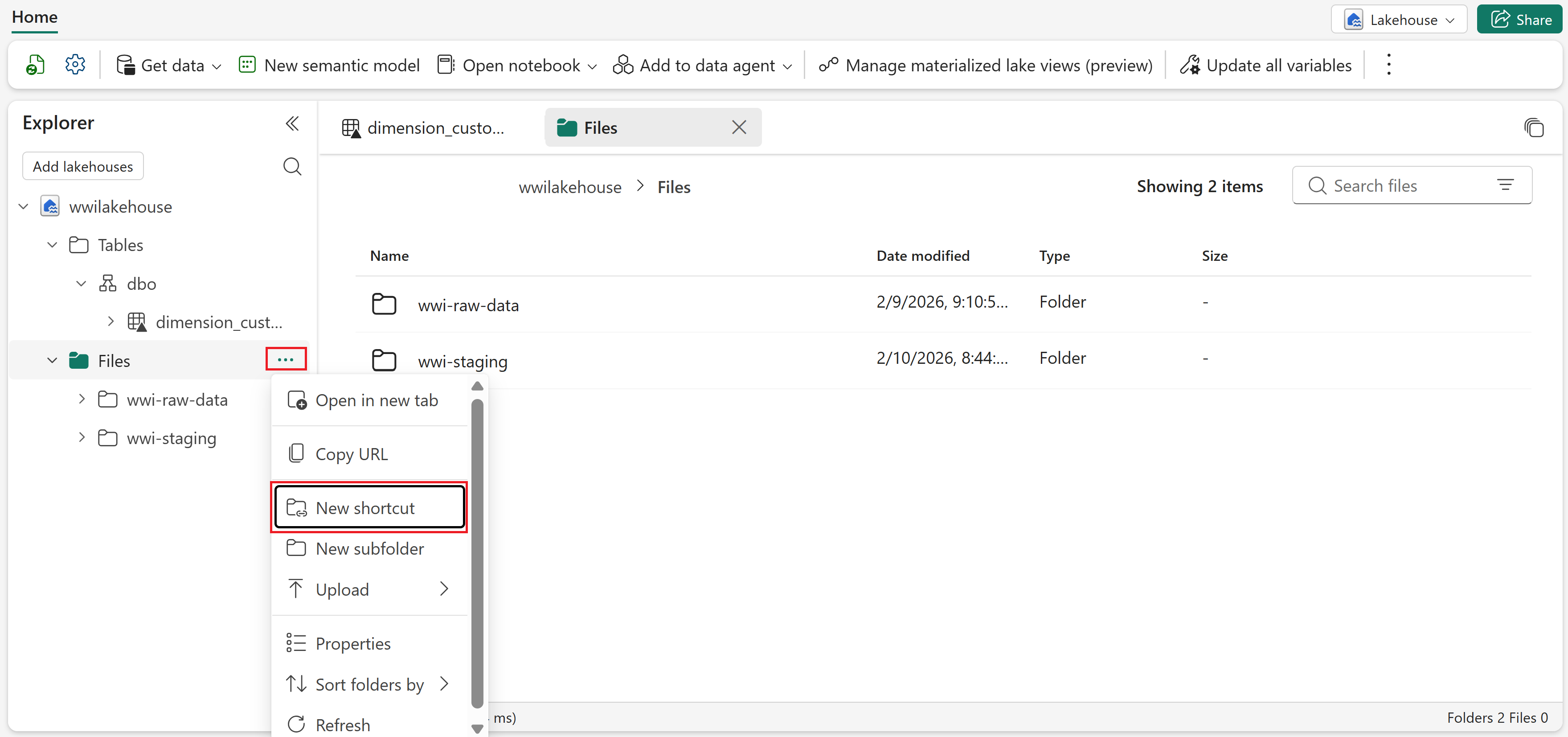
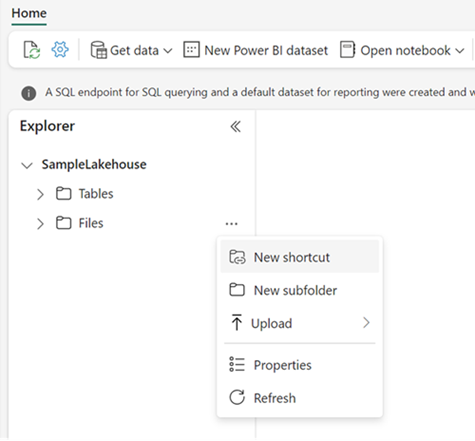
- Open your lakehouse and go to the Explorer view
- Click the … (ellipsis) next to the Files folder
- Select New shortcut
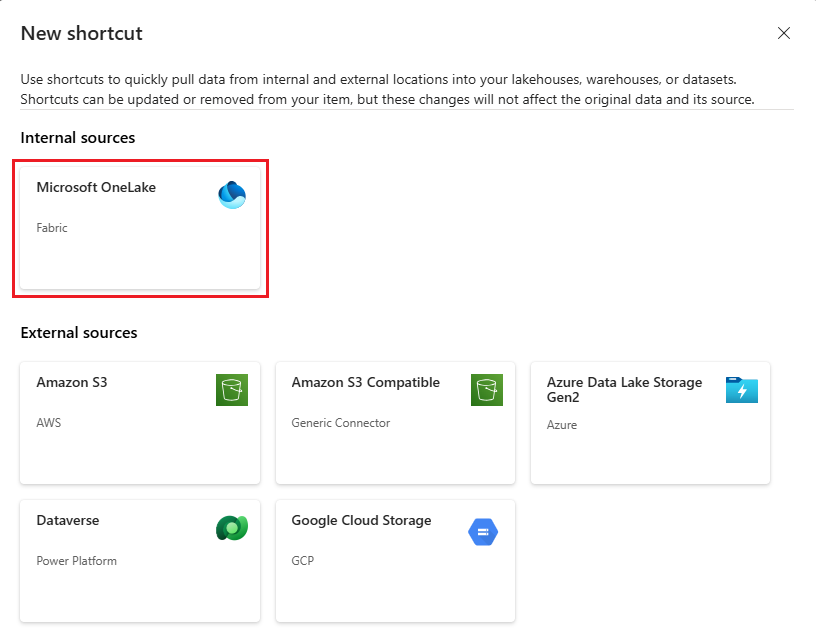
- Choose your source. For an internal source, select OneLake. For external, pick the appropriate cloud platform
- Browse to the workspace, item, and path you want to point to
- Confirm and the shortcut appears in your Files folder as a regular folder
In the Tables Section
- Click the … next to Tables
- Choose New table shortcut (for a single Delta table) or New schema shortcut (for a folder of tables)
- Follow the same source selection steps
Once created, Delta table shortcuts in the Tables section are automatically registered and visible in the SQL analytics endpoint with no extra steps needed.
Tips and Things Worth Knowing
Shortcuts are live references, not copies. This sounds obvious but the implications are real. If you write data through a shortcut (INSERT, UPDATE, DELETE, or ALTER TABLE), those changes go directly to the source. There’s no buffer, no isolation. Make sure anyone with write access to the shortcut understands they’re modifying the original data.
Deleting a shortcut is safe; deleting files inside one is not. If you delete the shortcut object itself, only the pointer is removed and the source data is fine. But if you navigate inside a shortcut and delete a file or folder (and you have write permissions on the target), you’re deleting from the actual source. Pay attention to which level you’re operating at.
Use caching for external shortcuts with repeated access. For S3, S3-compatible, GCS, and on-premises data gateway shortcuts, OneLake can cache files locally to reduce egress costs. You configure the retention period (1 to 28 days) in Workspace Settings under the OneLake tab. Files larger than 1 GB aren’t cached, and each access resets the retention timer.
Shortcuts in the Tables folder only work at the top level. A common mistake is trying to create a shortcut inside a subfolder of Tables. It won’t work. Shortcuts go directly under Tables, not nested inside other paths.
Check the lineage view. When you have multiple shortcuts connecting items across a workspace, the Lineage View (accessible from the upper right of Workspace Explorer) shows you the relationships visually. It’s scoped to a single workspace, so cross-workspace shortcuts won’t show up there.
Give new shortcuts a moment. Changes sync nearly instantly, but the Table API can take up to a minute to recognize a new shortcut. If a table doesn’t appear immediately after creation, wait a bit before troubleshooting.
When to Use Shortcuts vs. Copying Data
Shortcuts are the right choice in most scenarios where the data already exists somewhere in your tenant:
| Scenario | Recommendation |
|---|---|
| Data is in another Fabric lakehouse or warehouse | Shortcut (no duplication, always current) |
| External cloud storage, read-heavy access | Shortcut with caching enabled |
| Data needs complex transformations before use | Copy (use a notebook or pipeline) |
| Compliance requires data in a specific region | Copy (shortcuts keep data at the source region) |
| You need table maintenance like VACUUM or OPTIMIZE | Copy (Delta maintenance only runs on local tables) |
Known Limitations
A few limits to keep in mind when planning how you use shortcuts:
- Each Fabric item supports up to 100,000 shortcuts
- A single OneLake path can have up to 10 shortcuts pointing to it
- Shortcut chains are limited to 5 links deep (a shortcut pointing to a shortcut pointing to a shortcut…)
- Names cannot contain
%or+characters - Non-Latin characters are not supported in shortcut names, parent paths, or target paths
Final Thoughts
Shortcuts are one of those features that seem simple until you start using them across a larger Fabric environment, and then the design decisions start to matter. Understanding where to place them (Tables vs Files), how authorization flows through them, and what it actually means to write through a live reference saves a lot of confusion later.
For internal data sharing across lakehouses and workspaces, shortcuts are almost always the better option over copying. For external sources, they’re equally powerful, just take care with credential management and consider caching if you’re pulling the same files repeatedly.