
PCF components give you full control over the UI in Power Apps, but building one from scratch means setting up the TypeScript scaffolding, writing the rendering logic, and wiring up the component manifest. That’s a lot of boilerplate before you’ve written a single line of actual logic. I recently used OpenAI’s Codex CLI to shortcut most of that and it worked well enough to be worth writing up.

In this post I’ll walk through how I used Codex CLI in a WSL terminal to build a card view PCF component for a canvas app, from the initial prompt through to local testing and deployment.
What Is Codex CLI?
Codex CLI is OpenAI’s terminal-based AI coding assistant. You run it from a command line, give it a prompt in plain language, and it reads your codebase, writes code, and executes commands on your behalf. It’s agentic: you describe what you want and it figures out the steps, rather than just generating a code snippet for you to paste.
For PCF development, this is useful because the framework has a lot of structure and conventions. Codex can reference your existing components, follow the patterns already in your project, and generate a working component rather than a generic scaffold.
What I Wanted to Build
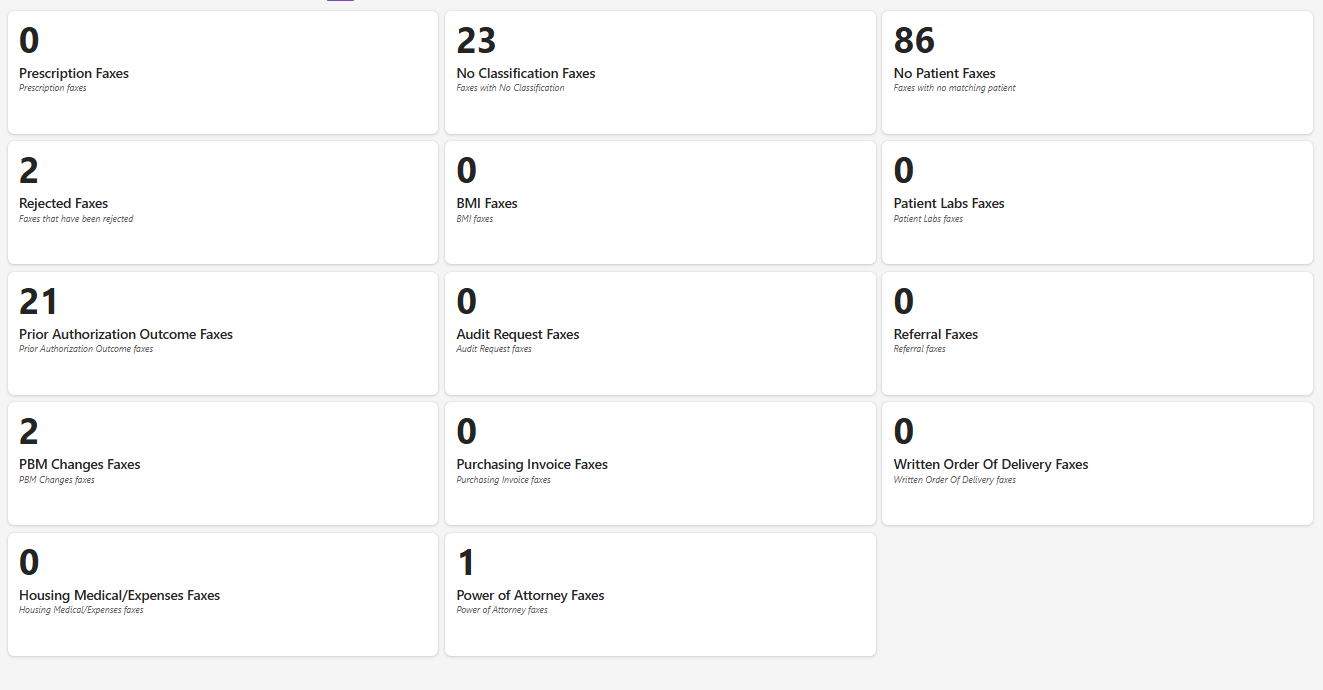
The goal was a card view component to display fax category counts in a canvas app. Each card shows a category name, a count, and a description. I had a screenshot of the target layout and existing PCF controls in the same repo for Codex to reference.
The finished component looks like this:
Setting Up
Codex CLI runs in a terminal. I used WSL (Ubuntu) on Windows. Before starting, I navigated to the controls folder in the repo:
cd /mnt/c/Users/laure/Documents/GitHub/pf-controls/solutions/Patient_First_Controls/controls
I also set the environment variables Codex would need for deployment context:
$env:PAC_ENV_URL = "https://yourenv.crm.dynamics.com"
$env:SOLUTION_UNIQUE_NAME = "Your_Solution_Name"
The Prompt
The prompt I gave Codex was direct: describe the component I wanted, point it to the existing controls for reference, and attach the screenshot as a visual target.
I need to create a new PowerApps PCF component that displays a card view
in a canvas app gallery. The screenshot filename is pcf-cards1. Please
reference the PCF controls I have in my original folder and create a new
component based on those patterns.
The key parts of a good Codex prompt for PCF work:
- Describe the component’s purpose and layout clearly
- Reference existing controls in the repo so Codex follows your project’s conventions
- Attach a screenshot if you have a specific layout in mind
- Mention the canvas app YAML if the component needs to match specific property bindings
Codex reads the existing controls, understands the structure, and generates the new component following the same patterns. This means the manifest format, folder structure, and TypeScript conventions all stay consistent with the rest of the project.
Testing Locally
Once Codex generated the component, I tested it locally using the PCF test harness before deploying. From PowerShell:
cd C:\Users\laure\Documents\GitHub\pf-controls\solutions\Patient_First_Controls\controls
npm install
npm start
This opens the PCF framework test environment in the browser, where you can set input properties and see the component render in isolation.
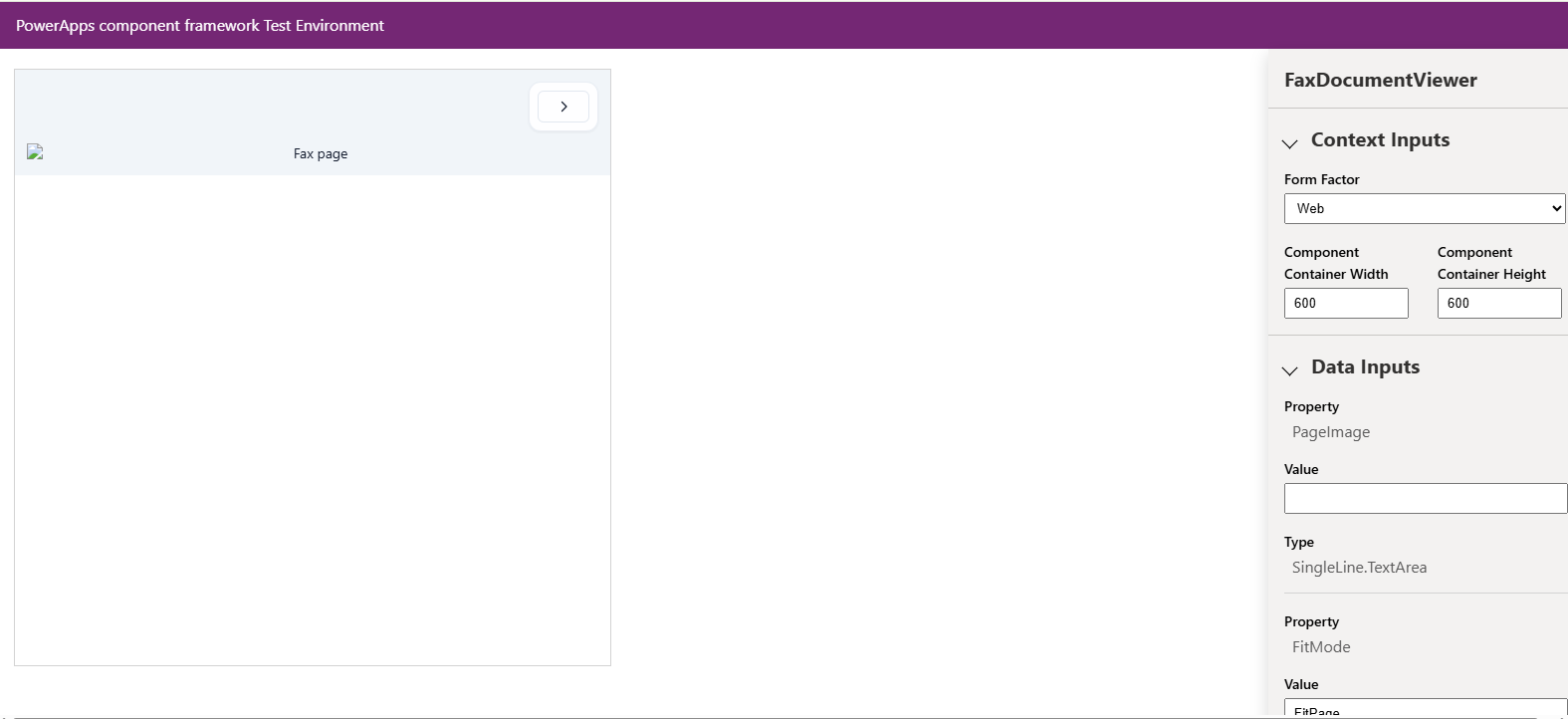
The test harness shows the component name, context inputs (form factor, container dimensions), and data inputs. It’s the fastest way to catch rendering issues before pushing to an environment.
Deploying
Once the component looked right locally, I deployed using the devpublish.ps1 script in the repo. For a new control:
pwsh C:\Users\laure\Documents\GitHub\pf-controls\scripts\devpublish.ps1 `
    -EnvUrl https://yourenv.crm.dynamics.com `
    -InstallDependencies `
    -SkipBuild:$false `
    -Incremental
The -Incremental flag pushes only the changed controls rather than rebuilding the full solution, which keeps deployment time short during iteration.
Is It Worth Using?
For PCF work specifically, Codex CLI is a good fit. PCF components have a consistent structure (manifest, index.ts, styles) and Codex handles that scaffolding well, especially when there are existing components in the same repo to reference. The ability to attach a screenshot and have it generate a component that matches the layout saves a significant amount of trial and error.
The workflow that worked for me: give a clear prompt with a visual reference, test immediately with npm start, iterate with follow-up prompts if something is off, then deploy when it looks right. It doesn’t replace understanding how PCF works, but it compresses the time between an idea and a working component.