
Building a custom UI in a model-driven Power App used to mean writing HTML web resources, wiring up JavaScript, and deploying everything through the Power Platform CLI. Generative Pages changes that. You describe what you want in plain language, and the system writes the React code, connects it to Dataverse, and renders a live page inside the app designer.
The feature is generally available in the US region as of November 2025. In this post I’ll cover how it works, what it can build, and the things worth knowing before you start using it.
What Are Generative Pages?
Generative Pages is an AI-driven feature for model-driven apps in Power Apps. You describe a page in natural language, optionally attach a sketch or wireframe, link up to six Dataverse tables, and the system generates a fully functional React page connected to your data.
The output is real code. You can view it, edit it manually, and move it between environments using solutions. This isn’t a low-code drag-and-drop experience; it’s an AI agent writing TypeScript and React that runs inside a model-driven app.
How the Build Process Works
When you submit a prompt, the agent runs a visible multi-step pipeline you can watch in real time:
- Thought streaming - The agent outlines its interpretation of your prompt, lists requirements and assumptions, and drafts an execution plan
- Code generation - It writes the underlying React/TypeScript code based on that plan
- Transpilation - The code is transpiled for compatibility
- Final rendering - The completed UI is displayed in the preview
The thought streaming step is useful. It shows you what the agent understood before it commits to generating code, so you can catch misinterpretations early.
Starting with Plan Designer
Before building pages, you need an app with Dataverse tables. Plan Designer is a good place to start. You describe a business problem in plain language and the AI generates a full plan: the Dataverse tables, the apps (canvas and model-driven), and any Power Automate flows needed to support the process.
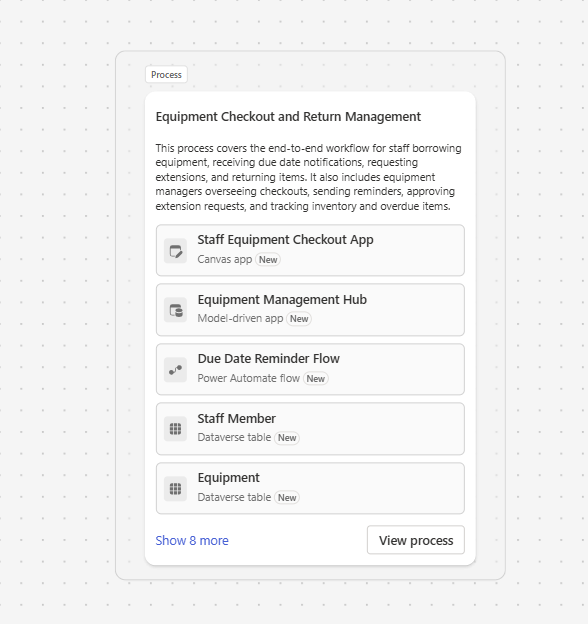
For an equipment checkout tracker, the plan output looks like this. The process card summarises what will be built:
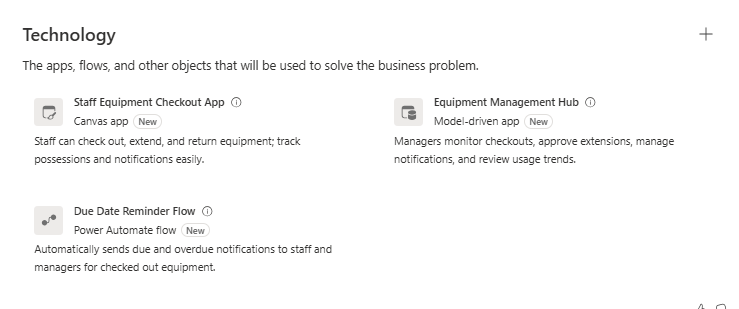
The Technology tab lists the specific artifacts: a canvas app for staff, a model-driven app for managers, and a flow for due date reminders.
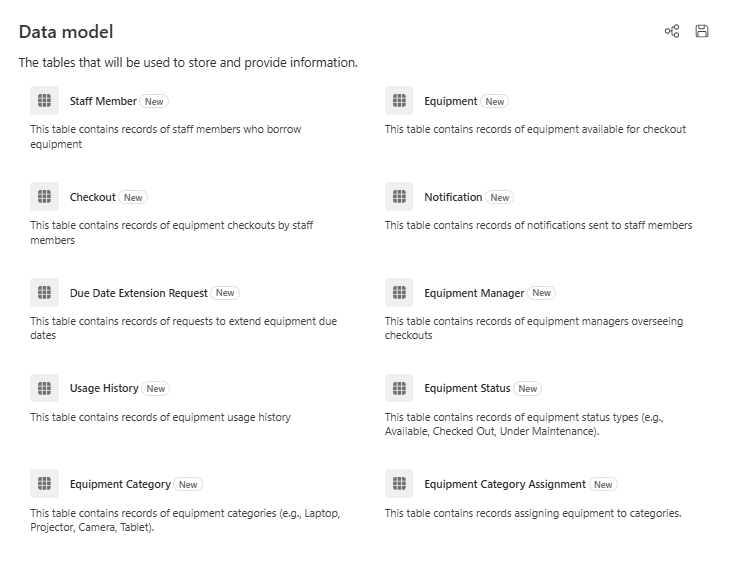
The Data Model tab shows the Dataverse tables the AI proposes:
And the ERD view shows the relationships between them:

From here, you can create the tables and apps directly from the plan. The model-driven app it creates is then where you add Generative Pages to build the custom UI. There’s no direct integration between Plan Designer and Generative Pages yet; you switch over to the app designer manually.
Creating a Generative Page
To get started, open a model-driven app in the designer and select Add a page > Describe a page. From there:
- Type a description of the page you want, including functional requirements and any UX preferences
- Add up to six Dataverse tables via Add data > Add table
- Optionally attach an image (a napkin sketch, a wireframe, or a screenshot) to guide the layout
- Optionally enable the Include images tool, which gives the agent access to a curated library of 25,000 stock images for placeholders, decorative backgrounds, and empty states
A prompt like this is enough to get started:
Build a page showing Account records as a gallery of cards using a modern look and feel. Include name, entity image on the top, and website, email, phone number. Make the gallery scrollable.
When you’re done, select Generate page.
Iterating on the Output
Generation produces a first draft, not a finished product. The real workflow is iterative: generate, review, refine, repeat. You have a few ways to do this.
Chat with the agent. After each generation, type follow-up instructions in the chat to adjust the output. The agent treats each exchange as a new iteration and updates the code accordingly.
Edit the code directly. Select the Code tab to view the generated React/TypeScript. Select Edit to modify it manually. Your changes are saved as a new iteration. This is useful when the agent’s output is mostly right but needs a specific fix that’s easier to make directly in code than to explain in a prompt.
Compare iterations. Once you’ve done at least two iterations in a session, select Compare on the Code tab to see a diff between the current and previous version.
Attach a screenshot. In the chat, you can attach a screenshot of the current preview alongside your next message, which helps when the feedback is visual (“the card padding here needs to be tighter”).
Accessibility assistant. After each iteration, an accessibility scan runs automatically on the generated code. Issues are surfaced in a panel at the bottom of the screen, and an Auto Fix button passes any violations back to the agent to resolve.
Code-First Approach
For developers who prefer working locally, Microsoft officially supports using external AI coding tools, including Claude Code, to build generative pages outside the browser. You write or modify the TypeScript and React code locally, then deploy using the Power Platform CLI. This gives you standard source control, better debugging, and a workflow that fits into a proper CI/CD pipeline.
Moving Pages Between Environments
Generative pages are solution-aware. To move a page to another environment:
- Add the model-driven app (containing your generative pages) to a solution
- Export the solution as managed or unmanaged; the pages appear as UX Agent Project rows and are included automatically based on their dependency on the app sitemap
- Import the solution into the target environment
One thing to know: only the first prompt and the last published code transfer with the solution. The full conversation and revision history stay in the original environment. If you need the history, you’ll need to keep access to the source environment.
If you created pages during the preview period, load them in the model-driven app designer first. You’ll see an “Upgrading your page” message while they migrate to the new solution-aware format. Don’t close the window until it finishes.
Limitations
Generative Pages is a genuinely useful feature, but it’s worth knowing where the current boundaries are before you commit to it for a project.
| Limitation | Detail |
|---|---|
| App type | Model-driven apps only. Canvas apps are not supported. |
| Data sources | Dataverse only, up to 6 tables per page |
| Region | US region only |
| Prompting language | US English only (via make.powerapps.com) |
| Collaboration | Not supported. Only one maker should work on a page at a time. |
| Solution export | Only the first prompt and last published code travel with the solution |
| Prompt length | Maximum 50,000 characters |
| Code quality | Generated code is not guaranteed production-ready. Validation is your responsibility. |
The Dataverse-only limitation is the one most likely to affect platform decisions. If your data lives in SharePoint, SQL, or another source, generative pages can’t reach it directly.
The model-driven-only limitation also matters for teams building canvas apps. This feature doesn’t cross that boundary.
What It Actually Produces
The output is React and TypeScript. Generated code for a basic contact gallery with filtering, search, and CRUD operations runs around 700 lines, uses Material UI components, and uses an internal dataApi object for Dataverse queries. It’s real, readable code that a developer can audit, modify, and maintain.
What previously took days to build in custom code, from setting up the component structure to wiring up Dataverse queries, can now be started with a single prompt and iterated on in a single session. The agent also tends to build more than you asked for: sort controls, empty states, and basic error handling often show up without being explicitly requested.
The important word is “started.” The output is a solid first draft, not a production deployment. Review the generated code against your organization’s standards before shipping it.
Is It Worth Using?
Generative Pages lowers the barrier to building custom UIs in model-driven apps significantly. The combination of natural language prompts, iterative chat refinement, live code editing, and accessibility scanning makes it a credible tool for both makers and developers.
The current limitations (US region, Dataverse only, model-driven only) mean it won’t fit every scenario. But for teams building on Dataverse and model-driven apps, it’s worth adding to the toolkit. The code-first path through Claude Code and the CLI makes it accessible to developers who want proper source control without giving up the AI-assisted generation.